Click “CONTACT” - You can add your Contact
(Client) Terms by copy/pasting your Standard T&Cs in the blank field,
alternatively you could insert the following text:
Terms and Conditions
If you are an existing client of {i-intro®}
we will have previously agreed commercial terms and these advantageous terms
will apply to any hires made from candidates viewed through our technology
platform.
If you are a new client to {i-intro®}
and are yet to agree commercial terms with us our standard terms and conditions
will apply - these are available online at {www.i-intro.com/terms}.
These terms will apply to any placements of
candidates viewed through this platform.
Please only click Agree if you are prepared
to accept our commercial terms.
Once completed, click “SAVE CHANGES”.
These Terms and Conditions will be set as default and
will appear for all new Talent Alerts created. This will not update existing Talent
Alerts that have already been created.
If
you need to revert to the defaulted Terms and Conditions, click “RESET TO DEFAULT”.
……………………………………………………………………………………………………………………….
8. Candidate Documents
You can add any documents you would like to your
candidate to upload such as CV/Resume, Personal Statement, Behavioural
Assessment etc.
To add your candidate’s CV/Resume, type “CV/Resume” in
the Document Title in the blank field.
· Who can see this?
Colleagues & Myself
and Contacts (Clients) are set as default. Please ensure you tick Contacts to
ensure your client will be able to view. Tick Candidates if you want this
document to be made visible to your candidates.
Once completed, click “ADD DOCUMENT”
- Re-order Candidate Document – You can re-order the
documents, putting the most important documents at the top of the list by click
and dragging the document up or down the list and then “SAVE DOCUMENTS
ORDER”:
- Delete Candidate Documents
– You can delete any
of the documents that are not relevant by clicking the edit icon and then REMOVE.
……………………………………………………………………………………………………………………….
9. Key Competency Questions
This feature allows you to
select questions that you feel potential clients would like to ask. You can even
ask your candidate if there are any particular questions which might help them
highlight either their achievements or their skills that they would like to
include and answer.
We would suggest 3 questions up to a maximum of 5.
You
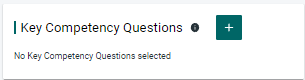
can set the Key Competency Questions by clicking the plus icon:
Select either “CHOOSE FROM PERSONAL SET” or “CHOOSE
FROM DEFAULT LIBRARY”
PERSONAL SET
are
your own personal questions you would like to add which you have customised
from the default library.
You
can add your own personal set of questions by clicking your profile picture  to right of screen and then KCQ SETS.
CREATE QUESTION SET
If
you would like to create a set of questions for a particular client or
industry. Enter New category name example: Client Company Inc or this could
even be Manufacturing industry.
A
new box will open showing your new category name, click the dropdown list and
enter your new question in the box and then click ADD.
DEFAULT LIBRARY
are defaulted questions that are available. Select
the questions you would like to include and click ADD TO CAMPAIGN.
……………………………………………………………………………………………………………………….
10. Add Candidates
Once your Talent Alert Detail section is complete you
will want to invite your candidates to complete their profile. You will need to Add
the candidate to the Talent Alert before you are able to send an invite.
You
can add Candidates to your Talent Alert by clicking the “CAMPAIGN CANDIDATES” tab:
Select either “ADD EXISTING CANDIDATES” or “CREATE
NEW CANDIDATE”.
- ADD EXISTING CANDIDATES – Existing
candidates will only show in the dropdown list if you have added or invited the
Candidate before.
- CREATE CANDIDATE – If the candidate is not showing in the existing
candidates dropdown list. Enter their details such as Job Title, First Name, Last
Name, Email, Postcode, Country:
Once completed, click “CREATE”.
……………………………………………………………………………………………………………………….
11. Invite Candidates
Once you have added your candidate to your Talent
Alert it is important that you provide your candidate with all the information
to complete their profile. As best practice you should contact your candidate
before this invitation as part of your briefing with them and explain
everything that they need to complete, such as:
- Profile Image – upload a recent photo of themselves
- Candidate Introduction Video - a
short Profile Video about themselves
- Upload the required document(s) you have set in the Talent Alert such as CV/Resume. All documents must be in PDF format.
- Answer the Key Competency Question(s) you have set in the
Talent Alert
· Once you have informed your candidates. You will then
need to invite your candidate by clicking “INVITE CANDIDATES”:
Tick the Candidate’s email.
You can customise the email invitation that is sent to
the candidate by editing the text but please ensure you do not remove any
defaulted links:
Once completed, click “INVITE TO CAMPAIGN”.
Your candidate will receive an email titled “ACTIVATE
Your Account”. The email will confirm their Username: (their email address).
They will need to click on the link to activate their account and create a
password. Password must be between 6-15 characters long and contain at least
one digit.
Once their password has been created your candidate
will be able to gain access to their profile.
Your
candidate will have also received another email titled “Your Talent Alert
Profile. They can click on the link to gain access to their profile.
Your candidate must accept the Candidate Terms and
Conditions before they can complete their profile. Your candidate will need to
click “VIEW” to access their profile:
Your
candidate will be asked to upload a Profile Image, a short Profile Video about
themselves, the required documents and answer the Key Competency Questions.
Once
your candidate has completed this, they will need to click “SUBMIT APPLICATION”.
You
will receive a notification confirming that your candidate has submitted their
profile and the Status will automatically change to Submitted. The Candidate
will no longer have access to their profile after they have submitted.
……………………………………………………………………………………………………………………….
12. Candidate Profiles
Click on the candidate to review what they’ve
added. All being well, everything will
look great but be prepared for the possibility that you might need to make some
cosmetic adjustments.
To access your candidates’ profile, click on their
photo:
You will need to add additional information to your
candidates’ profile, this can be done before you invite the candidate or after
your candidate has submitted their profile.
……………………………………………………………………………………………………………………….
12.1 Candidate Profiles - Manage
Details
Your candidate should have completed these sections
when completing their profile, you can amend these at any time.
……………………………………………………………………………………………………………………….
12.2 Candidate Profiles - Candidate
Documents
If your candidate has uploaded their own CV/Resume, we
suggest that you replace this with the recruiters reformatted CV (company
letterhead).
All documents must be in PDF format.
……………………………………………………………………………………………………………………….
12.3 Candidate Profiles - Executive
Summary
The consultant should summarise the candidate’s
strengths and include a brief description of the candidate’s history, skills
and what they are looking for in their next role.
Example:
This candidate has emerged as the leading Candidate
within the campaign, based on a blend of his Benchmark strength & his
attractive/cost effective salary level - In our opinion the 'Frontrunner' in
terms of presentation to 'i-intro®'.
This candidate is an experienced candidate having
spent the last 7 years as an international sales manager, responsible for
agents and distributors across the EMEA. This candidate is a natural sales
person and has a solid reputation within the industry as someone who
demonstrates a high degree of integrity, loyalty and always delivers
exceptional results.
A classic example of an individual where “what you see
is what you get”, This candidate is a straight-talking businessman who comes
across naturally as honest and trustworthy. It is, no doubt, this quality that
has contributed to his success, both in individual sales as well as in managing
agents and distributors globally.
The “McQuaig Word Survey” indicates that This
candidate is a strong match and falls within the desired range in all four
behavioural scales; a very rare result. It describes him as someone who is
“Independent, he is tenacious in his prospecting activities and will likely be
a good objection handler" and “Doggedly persistent, he is not afraid to
ask for the order repeatedly and try new approaches if rejected."
This candidate has the experience and skills required
to excel in this position, and his professional approach could be exactly what
is needed to help him to quickly and effectively fit into Client Company’s'
culture.
This candidate is looking to take on a sizeable
challenge that will allow him to continue to utilise his contacts globally.
Along with the above, these are two more reasons why we believe he makes a
highly attractive candidate for this opportunity.
You can add your comments by typing in the blank field
and clicking “SAVE”:
Please note that this section is not visible to your
candidate.
……………………………………………………………………………………………………………………….
12.4 Candidate Profiles - Candidate
Key Facts
The consultant should include 3 Key Facts about the
candidate to highlight their skills and knowledge – these Key Facts will
display in the marketing of the candidate so it is important that you create
compelling facts about the candidate that will make them appealing to prospects.
Example:
Fact One - Miller Heiman Sales Trainings, 4 Days in 2021
Fact Two - Fluent in 3 languages: English, German, Turkish
(native language)
Fact Three – Executive MBA from LSE
You can add your comments by typing in the blank field
and clicking “SAVE”:
Please note that this section is not visible to your
candidate.
……………………………………………………………………………………………………………………….
12.5 Candidate Profiles - Candidate
Overview
The consultant should include Selling Points,
Experience, Location of candidate and/or Salary expectations. These are not
mandatory but will add more context to the candidate profile.
Example:
Overview 1 – Grown sales teams to $25m revenues - Worked in
start-ups and mid-size organisations
Overview 2 - Willing to relocate within Europe - Family
"grown up" so can relocate with ease
Overview 3 - Willing to work on a flexible compensation
package - Understands that different size companies have different budgets
You can add your comments by typing in the blank field
and clicking “SAVE”:
Once you’re 100% sure that the Candidate’s profile is
ready, change the Talent Alert Status to “LIVE”.
Please note that this section is not visible to your
candidate.
……………………………………………………………………………………………………………………….
13. PREVIEW Talent Alert
You’re
almost ready to send the Talent Alert to a Contact (Client) but first, click on
“PREVIEW TALENT ALERT” to preview exactly
what your client will see.
Test the Invited Contact View and Uninvited Contact
View and make sure you are happy with them.
Once you’re 100% sure that the Talent Alert is ready, change
the Talent Alert Status to “LIVE”.
……………………………………………………………………………………………………………………….
14. Talent Alert Status
This
will need to be updated accordingly depending on the status of the Talent Alert.
- Draft – All new Talent Alerts are defaulted as Draft.
- Live - You will need to set to this status before you can invite candidates and Contacts
(Clients) to the Talent Alert.
- Unsuccessful - If the Talent Alert has been cancelled or you
have been unable to find your candidate a new role, then set to this status
just for reference purposes only.
- Complete - If the Talent Alert is successful and a client
has recruited your candidate then set to this status for reference purposes
only.
- Archived - If the Talent Alert has been inactive for a long
period of time, then set to this status for reference purposes only.
- Demo - If the Talent Alerts for demonstration purposes only, then set to this status
for reference purposes only.
……………………………………………………………………………………………………………………….
15. Share a Link – Full version of Talent
Alert
You can share the share just the Full Talent Alert Profile
including the individual candidate profile and the consultant Landing Page
Video and/or you can share just the Candidate Profile only (see step 16).
You can create a Talent Alert link by clicking “SHARE”
from the Talent Alert Detail section:
Link – You can share your Talent Alert by any
communication channel that you’d like, such as LinkedIn or Outlook (Web version
only). When you share, a preview of your Talent Alert will be created for you. Simply
follow these steps:
1. Select the Copy button to get the Talent Alert link
2. Paste this link in your communication channel of
choice
3. Wait for the preview to load in this pasted area
You can
delete the Link text from your post/email to keep it “clean”
4. That’s it! When you post or share this link, users
can click to access your Talent Alert
HTML – You can share your Talent Alert on your website or
in HTML supported Email providers (such as HubSpot, Mailchimp etc. When you
share, a preview of your Talent Alert will be created for you. Simply follow
these steps:
1. Select the Copy button to get the HTML snippet of
the Talent Alert
2. Navigate to your email marketing platform of choice
3. Draft a new email to send to your mailing list
4. Add a HTML block to your email message and paste the
HTML into this box
5. Ensure that you’ve selected the correct recipients
for the email and send!
If your Contact (Client) would like to know more about
your candidate, they can click “REQUEST ACCESS” and send a message. The
Consultant will automatically receive an email. You will then need to Add a
Contact and Invite the Contact (Client) see Step 17 and 18.
……………………………………………………………………………………………………………………….
16. Share a Link – Candidate Profile Only
You can share just the Candidate Profile only and/or
you can share the Full Talent Alert Profile including the individual candidate
profile and the consultant Landing Page Video (see step 15).
You can create a Talent Alert link by clicking “SHARE”
from the Campaign Candidates section:
Link – You can share your Candidate by any communication
channel that you’d like, such as LinkedIn, iMessage or Outlook (Web version
only). When you share, a censored preview of your Candidate will be created for
you. Simply follow these steps:
1. Select the Copy button to get the Candidate link
2. Paste this link in your communication channel of
choice
3. Wait for the preview to load in this pasted area
4. That’s it! When you post or share this link, users
can click to access your Candidate. Don’t worry, your Candidate will be
censored until you authorise users to access fully.
HTML – You can share your Candidate on a larger scale,
such as HubSpot or Mailchimp email marketing. When you share, a censored
preview of your Candidate will be created for you. Simply follow these steps:
1. Select the Copy button to get the HTML snippet of
the Candidate
2. Navigate to your email marketing platform of choice
3. Draft a new email to send to your mailing list
4. Add a HTML block to your email message and paste
the HTML into this box
5. Ensure that you’ve selected the correct recipients
for the email and send!
GIF - You can share your Candidate by Outlook (Web
version only).
If your Contact (Client) would like to know more about
your candidate, they can click “REQUEST ACCESS” and send a message. The
Consultant will automatically receive an email. You will then need to Add a
Contact and Invite the Contact (Client) see Step 17 and 18.
……………………………………………………………………………………………………………………….
When a client requests access to view the Talent
Alert.
You
will need to Add the Contact (Client) to the Talent Alert before you are able
to send an invite.
You
can add Existing Contact to your Talent Alert by clicking the “MANAGE ACCESS” tab:
Select either “ADD EXISTING CONTACT” or “CREATE
NEW CONTACT”.
- ADD EXISTING CONTACT – Existing
Contact (Client) will only show in the dropdown list if you have added or
invited the Client before.
- CREATE CONTACT - If the Contact (Client) is not showing in the
existing contact dropdown list. Tick Create Employer and enter
their details such as Employer Name, Country, Job Title (The Clients Job Title),
First Name, Last Name, Salutation, Email, Telephone Number:
Once completed, click “CREATE”.
……………………………………………………………………………………………………………………….
Once you have added your Contact (Client). You will
then need to select the Contact you want to invite to the Talent Alert by clicking
“INVITE”:
You can customise the email invitation that is sent to
the Contact (Client) by editing the text but please ensure you do not remove
any defaulted links:
Once completed, click “INVITE CONTACTS”.
Your
Contact (Client) will receive an email titled “You're Invited To View Our Talent Alert”.
They will need to click on the link to gain access to the Talent Alert.
If you contact would like to view more about your
Candidate, your Contact (Client) will need to click “SIGN IN TO VIEW MORE”,
they will need to enter their email address and create a password.
The Contact (Client) will need to accept the Terms and
Conditions before they can view the Talent Alert.
If your Contact (Client) is interested in your
candidate, they can click “CONTACT RECRUITER” and send a message. The
Consultant will automatically receive an email.
……………………………………………………………………………………………………………………….
Congratulations!
You have
now completed a Talent Alert.
You will still be able to edit and view the Talent
Alert at any time. It’s just a case of waiting for feedback from the client. You
will receive notifications within the platform every time the client logs in to
the Talent Alert.